
How to Install IBO Player on Firestick – Are you looking to enhance your Firestick streaming experience with a reliable IPTV player? Installing IBO Player on Firestick is a fantastic choice for anyone who enjoys watching high-quality live TV, movies, and series. In this guide, we’ll walk you through the full process in a clear, beginner-friendly manner. Whether you’re tech-savvy or just getting started with IPTV, this guide is tailored for you. Using IPTV Brampton, a trusted IPTV subscription provider, you can maximize the potential of IBO Player to bring hundreds of channels to your fingertips.
IBO Player is a well-known IPTV player that allows you to play M3U playlists on devices like Firestick, Smart TVs, and Android boxes. However, it’s important to remember that the player itself doesn’t provide content—it only enables you to stream IPTV when paired with a subscription like the ones offered by IPTV Brampton. So, before installing IBO Player, make sure you have a valid IPTV subscription ready to go. Now let’s get into the steps and requirements for setting it up on your Firestick device. – How to Install IBO Player on Firestick
Step 1: Prepare Your Firestick for Third-Party Apps
How to Install IBO Player on Firestick – Amazon Firestick doesn’t allow the installation of third-party apps by default. Since IBO Player isn’t available directly from the Amazon App Store, you’ll need to tweak a few settings first. Begin by turning on your Firestick and heading over to Settings > My Fire TV > Developer Options. From there, toggle on both Apps from Unknown Sources and ADB Debugging.
These options allow the installation of third-party applications like IBO Player. Don’t worry—this process is safe as long as you’re downloading from a trustworthy source. It’s a common step for all advanced Firestick users. If you’re a subscriber of IPTV Brampton, you’re in good hands because our guides and IPTV packages are fully optimized to work with apps like IBO Player, ensuring your setup is smooth and hassle-free. – How to Install IBO Player on Firestick

Step 2: Install Downloader App to Access IBO Player APK
How to Install IBO Player on Firestick – Once you’ve enabled third-party apps, it’s time to install the Downloader app from the Amazon App Store. This app allows you to download APK files directly onto your Firestick. Simply go to the search icon on the Firestick home screen, type in “Downloader,” and click “Download.”
After the Downloader app is installed, open it and grant the necessary permissions. Inside the app, you’ll be able to input URLs for direct APK downloads. Type in the official IBO Player APK URL (you can find this on the IBO Player website or trusted sources). Once downloaded, the installation will begin. Remember, the IBO Player itself doesn’t offer channels. You will need to enter your IPTV subscription details—this is where IPTV Brampton comes in, offering fast activation and high-quality IPTV content that is fully compatible with IBO Player. –
Step 3: Install and Launch IBO Player
How to Install IBO Player on Firestick – After the download is complete, your Firestick will prompt you to install the app. Click “Install” and wait for the process to finish. Once done, you can open IBO Player directly or access it from the “Apps & Channels” section on your Firestick.
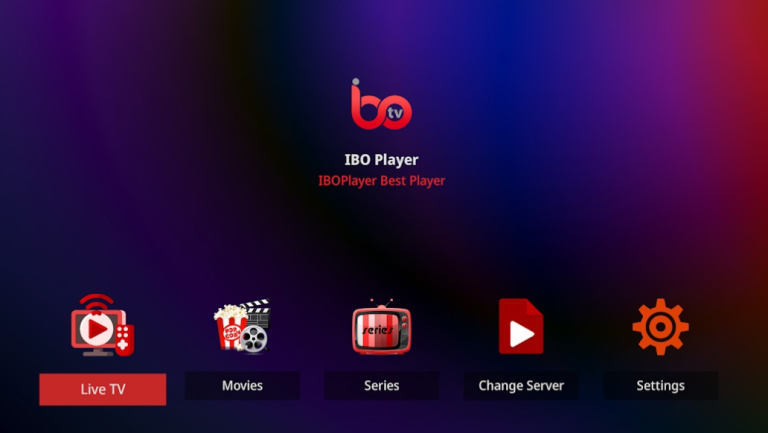
The interface of IBO Player is clean and user-friendly. Upon launching, you’ll receive a unique Device ID and Device Key. These credentials are required to activate the player on the IBO Player website. Simply visit their activation page, enter the Device ID and Key, and complete the process. While IBO Player offers a 7-day free trial, it’s recommended to purchase a full license for uninterrupted use—especially when you’re using high-quality IPTV services like IPTV Brampton. – How to Install IBO Player on Firestick
Step 4: Integrate Your IPTV Subscription
How to Install IBO Player on Firestick – Once IBO Player is activated, it’s time to load your IPTV content. If you’re using IPTV Brampton, you’ll already have received your M3U link or Xtream Codes login credentials. On the IBO Player app, go to “Add Playlist” and select your preferred method—either uploading an M3U URL or entering your Xtream Codes.
Make sure your playlist is titled in a way you can remember, like “IPTV Brampton TV.” After submitting the credentials, the app will load your channels, movies, and TV series. Depending on your internet speed and subscription quality, content should start streaming within seconds. IPTV Brampton’s servers are optimized for speed and minimal buffering, giving you the smoothest experience possible on IBO Player.
Step 5: Customize Settings and Improve Experience
How to Install IBO Player on Firestick – IBO Player offers a wide range of customizable settings, from video decoding options to EPG (Electronic Program Guide) integration. Once your IPTV subscription is active and playlists are loaded, take a few moments to adjust settings like subtitles, parental controls, and channel groupings.
Pairing IBO Player with IPTV Brampton means you can also enjoy multi-device access, high-definition channels, and 24/7 support. This combination is especially ideal for families or individuals looking for a robust IPTV experience without the hassle of buffering or connection drops. Want to stream sports, movies, news, or kids’ content? With IBO Player and IPTV Brampton, you’re completely covered.
Why Choose IBO Player with IPTV Brampton?
How to Install IBO Player on Firestick – While there are many IPTV players available for Firestick, IBO Player stands out due to its stability, user interface, and compatibility with advanced playlists. It is especially powerful when paired with a premium provider like IPTV Brampton, which supplies fully compatible, high-quality IPTV subscriptions with 99.9% uptime.
Choosing IPTV Brampton also gives you access to exclusive offers, consistent customer support, and an ever-growing list of channels in multiple languages. Whether you’re watching Arabic, English, French, Indian, or European content, IPTV Brampton makes sure your viewing experience remains top-notch. The performance synergy between IBO Player and IPTV Brampton is what sets this setup apart from other streaming options.
Frequently Asked Questions (FAQ)
Q1: Is IBO Player free to use on Firestick?
A: IBO Player offers a 7-day free trial. After that, a one-time license fee is required to continue using the app. You’ll still need an IPTV subscription from providers like IPTV Brampton.
Q2: Can I install IBO Player directly from the Amazon App Store?
A: No, you’ll need to sideload the APK using the Downloader app as IBO Player is not listed on the Amazon App Store.
Q3: What type of IPTV subscription do I need?
A: A subscription that provides an M3U playlist or Xtream Codes login is needed. IPTV Brampton offers both options with easy setup instructions.
Q4: Is it safe to install third-party apps like IBO Player?
A: Yes, as long as you’re downloading the APK from the official site or trusted sources, the installation is completely safe.
Q5: Why choose IPTV Brampton over other providers?
A: IPTV Brampton offers a reliable connection, thousands of channels, top-notch customer service, and quick activation, making it ideal for IBO Player users.
Ready to Enjoy Seamless Streaming?
How to Install IBO Player on Firestick – Now that you know how to install and configure IBO Player on Firestick, you’re just one step away from enjoying premium IPTV entertainment. With the power of IBO Player and a quality subscription from IPTV Brampton, you’ll unlock access to an entire world of live channels, movies, and more—right on your Firestick.
🎉 Ready to stream? BUY NOW from IPTV Brampton and start watching your favorite content instantly!